


Close Menu

    Subscribe to Updates

    Get the latest creative news from FooBar about art, design and business.

    What's Hot
    7.8

    Poco C85 5G Review: I Didn’t Think ₹12K Could Buy This Much Power!

    December 15, 2025

    Google’s New AI Browser ‘Disco’ Can Turn Your Tabs Into Smart Web Apps

    December 13, 2025

    Shoppers Line Up for Samsung Galaxy Z TriFold as It Launches

    December 12, 2025
    Facebook X (Twitter) Instagram YouTube
    • Subscribe to the Magazine
    • Join our Newsletter
    • BBC TopGear India
    • Influencer News
    Monday, December 15
    Facebook X (Twitter) Instagram Pinterest YouTube Tumblr LinkedIn
    Exhibit TechExhibit Tech
    • Home
    • Tech & AI
      • Tech News
      • Tech Launches
      • Tech Features
      • Gaming
      • AI & Robotics
      • Social Media
      • Cybersecurity
      • FinTech
      • Crypto
      • Space
      • Software & Apps
    • Reviews
      • Smartphone Reviews
      • Smartwatch Reviews
      • Headphone Reviews
      • Laptop Reviews
      • Tablet Reviews
      • Earbud Reviews
      • Camera
      • Speakers
      • PC components
      • Accessories
      • Best TV Reviews in India – Find Your Next Screen with Exhibit.tech
      • Compare the Best Gadgets in India – Smartphones, Laptops, Wearables & More
      • Best Gadget to use
    • Auto
      • Auto News
      • Auto Reviews
      • Auto Tech
      • Vehicles
        • Cars
        • Bikes
    • Lifestyle
      • Travel
      • Entertainment
        • Fashion
        • Sports
        • OTT
        • Music
        • Movies
      • Watches
      • Health
      • Sneakerhead
      • Lifestyle Features
    • Guides
      • Explained
      • How To’s
      • How Big Is
      • Tips and Tricks
      • Screw Ups
    • Interviews
      • Creators
      • Tech Talks
      • Celebrities
      • Top 100 Leaders
        • Tech & Auto 2025
      • Founder’s club
      • Petrol Head
      • Marketing Minds
      • Editor’s note
    • Events
      • Influencex Awards
        • InfluencEX Awards Winners 2025
        • InfluencEX Awards Winners 2024
        • InfluencEX Awards Winners 2023
      • Exhibit Tech Awards
        • Tech Awards Winners 2025
        • Tech Awards Winners 2024
        • Tech Awards Winners 2023
      • Tech Fashion Tour
      • TopGear India Awards
    • Deals and Offer
    Exhibit TechExhibit Tech
    Home >> How To's >> How to Create a Bootable USB Drive for Windows and Mac
    How To's

    How to Create a Bootable USB Drive for Windows and Mac

    By Shintu DhangAugust 1, 20253 Mins Read
    Facebook Twitter Pinterest LinkedIn Tumblr Email
    Share
    Facebook Twitter LinkedIn Pinterest Email

    Creating a bootable USB drive is important for installing or repairing operating systems like Windows or macOS. This guide provides step-by-step instructions for both platforms, ensuring you can create a reliable bootable USB drive with minimal hassle.

    For Windows
    Requirements

    • A USB drive (at least 8GB, 16GB recommended).
    • A Windows ISO file (download from Microsoft’s official website).
    • A tool like Rufus or Create Installation media for Windows.
    • A computer running Windows.

    Steps

    1. Prepare the USB Drive: Insert the USB drive into your computer. Ensure it’s empty, as formatting will erase all data.
    2. Download Rufus: Visit the official Rufus website and download the latest version. It’s free, portable, and widely used.
    3. Run Rufus: Open Rufus (no installation required). Select your USB drive from the “Device” dropdown.
    4. Load the ISO: Click “Select” under “Boot selection” and choose your Windows ISO file.
    5. Configure Settings: Choose “MBR” for older systems or “GPT” for newer UEFI-based systems under “Partition scheme.” Select “FAT32” for the file system to ensure compatibility.
    6. Start the Process: Click “Start.” Rufus will format the USB and copy the ISO files, making it bootable. This may take a few minutes.
    7. Finalize: Once complete, safely eject the USB. It’s now ready to install Windows or troubleshoot issues.

    Also Read: How to Transfer All Images from Google Photos to iCloud Photos

    For Mac
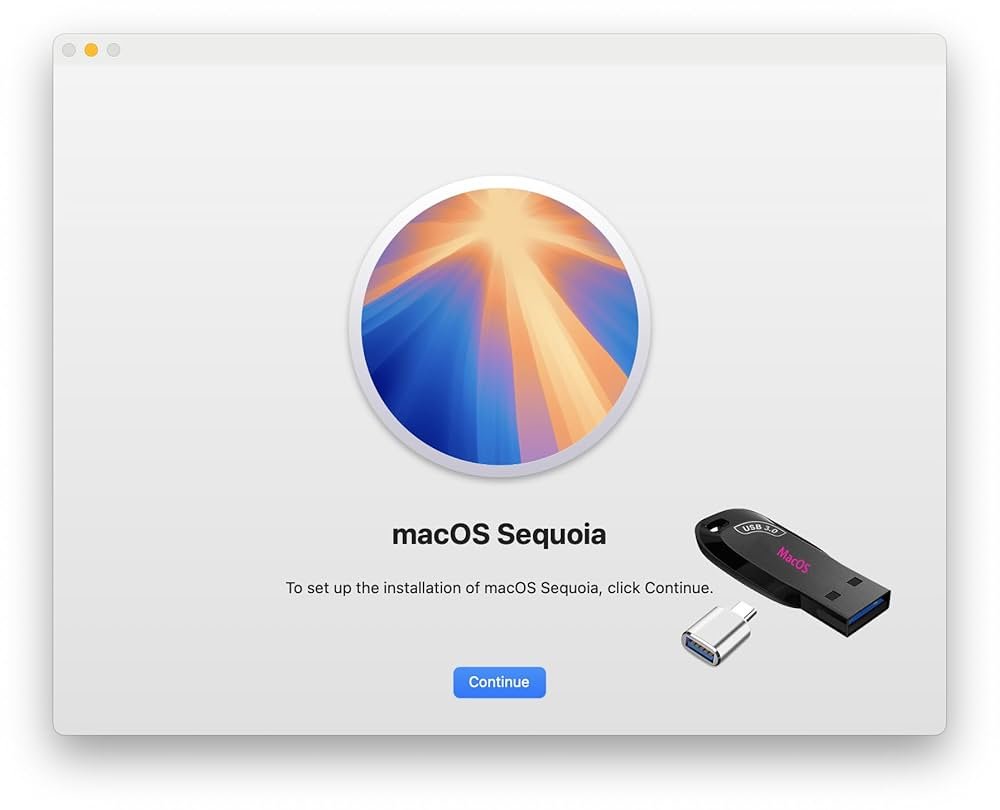
    Requirements

    • A USB drive (at least 16GB).
    • A macOS installer (download from the Mac App Store).
    • A Mac computer with admin access.

    Steps

    1. Download macOS Installer: Open the Mac App Store, search for the desired macOS version (e.g., Sequoia or Sonoma), and download it. The installer will appear in the Applications folder.
    2. Prepare the USB Drive: Insert the USB drive. Open “Disk Utility” (search via Spotlight), select the USB, and click “Erase.” Name it (e.g., “MyUSB”), choose “APFS” format, and “GUID Partition Map” scheme. Click “Erase” to format.

    Create Bootable USB: Open “Terminal” (via Spotlight). Use the createinstallmedia command. For example, for macOS Sonoma, type:

    sudo /Applications/Install\ macOS\ Sonoma.app/Contents/Resources/createinstallmedia –volume /Volumes/MyUSB

    1. Replace “Ventura” and “MyUSB” with your macOS version and USB name. Press Enter, input your admin password, and confirm by typing “Y” when prompted.
    2. Wait for Completion: The process takes 10-20 minutes. Terminal will notify you when the USB is ready.
    3. Eject USB: Safely eject the USB via Finder. It’s now bootable for installing or repairing macOS.

    Tips

    • Always back up USB data before formatting.
    • For Windows, ensure the ISO matches your system’s architecture (64-bit or 32-bit).
    • For Mac, verify compatibility between the macOS version and your hardware.
    • Test the USB by booting from it (restart your computer and select the USB via BIOS/boot menu).
    Bootable
    Share. Facebook Twitter Pinterest LinkedIn Tumblr Email

    Related Posts

    Google Rolls Out Power Saving Mode for Maps on Pixel 10 Series: Here’s How It Works

    November 29, 2025

    How to Navigate Your iPhone with Your Eyes

    November 17, 2025

    How to Hide Your Likes on Instagram Reels

    November 15, 2025

    1 Comment

    1. Pingback: How to Delete Your Data Permanently Before Selling a Device

    Top Posts

    Google Rolls Out Power Saving Mode for Maps on Pixel 10 Series: Here’s How It Works
    November 29, 2025
    How to Navigate Your iPhone with Your Eyes
    November 17, 2025
    How to Hide Your Likes on Instagram Reels
    November 15, 2025
    YouTube introduces Gemini-powered ‘Ask’ feature for PC and smartphone: Here’s how it works
    November 12, 2025
    How to Restore Old Photos Using Google Gemini AI: Easy Prompts, Tips & More
    November 12, 2025
    Exhibit Magazine | December 2025
    Stay In Touch
    • Facebook
    • YouTube
    • TikTok
    • Twitter
    • Instagram
    • Pinterest
    • LinkedIn
    • Reddit

    Subscribe to Updates

    Latest Posts
    Smart phones Reviews

    Poco C85 5G Review: I Didn’t Think ₹12K Could Buy This Much Power!

    7.8 Smart phones Reviews By Aadithya HarishDecember 15, 2025
    AI & Robotics

    Google’s New AI Browser ‘Disco’ Can Turn Your Tabs Into Smart Web Apps

    AI & Robotics By Aadithya HarishDecember 13, 2025
    Tech Launches

    Shoppers Line Up for Samsung Galaxy Z TriFold as It Launches

    Tech Launches By Shintu DhangDecember 12, 2025

    Exhibit.Tech, we’re your one-stop destination for everything tech! Whether it’s breaking news about the latest launches from giants like Sony, Vivo, Apple, Huawei, OnePlus, Sennheiser, Poco, and more, or in-depth reviews of mobiles, smartwatches, headphones, TVs, and earbuds – we’ve got you covered.

    Our reviews go beyond the surface, highlighting the pros and cons to help you make informed buying decisions. We’re here to simplify your tech journey with practical tips, tricks, and comprehensive “how-to” guides across a wide range of topics.

    Think of us as your friendly tech companion, helping you stay updated and make sense of the ever-evolving tech world with clarity and ease. At Exhibit.Tech, we make tech work for you!

    Most Popular

    Google’s New AI Browser ‘Disco’ Can Turn Your Tabs Into Smart Web Apps

    December 13, 2025

    Does the Angle of Your Monitor Screen Really Influence Eye Strain?

    November 23, 2025

    ChatGPT for iOS May Soon Integrate Apple Health to Deliver Personalized Wellness Insights

    December 4, 2025
    Our Pick

    The Strategy Behind Cellecor’s Explosive 105% YoY Growth

    December 4, 2025

    MumbaiHacks 2025 Makes History in Agentic AI: Insights from Organizer Dhruvil Sanghvi

    December 4, 2025

    Mr. James Sung on How MSI’s RTX 50 Series Is Powering India’s Next Generation of Gamers and Creators

    December 3, 2025
    Facebook X (Twitter) Instagram Pinterest YouTube
    • About Us
    • Careers
    • Contact Us
    © 2025 Exhibit Technologies | All Rights Reserved

    Type above and press Enter to search. Press Esc to cancel.