

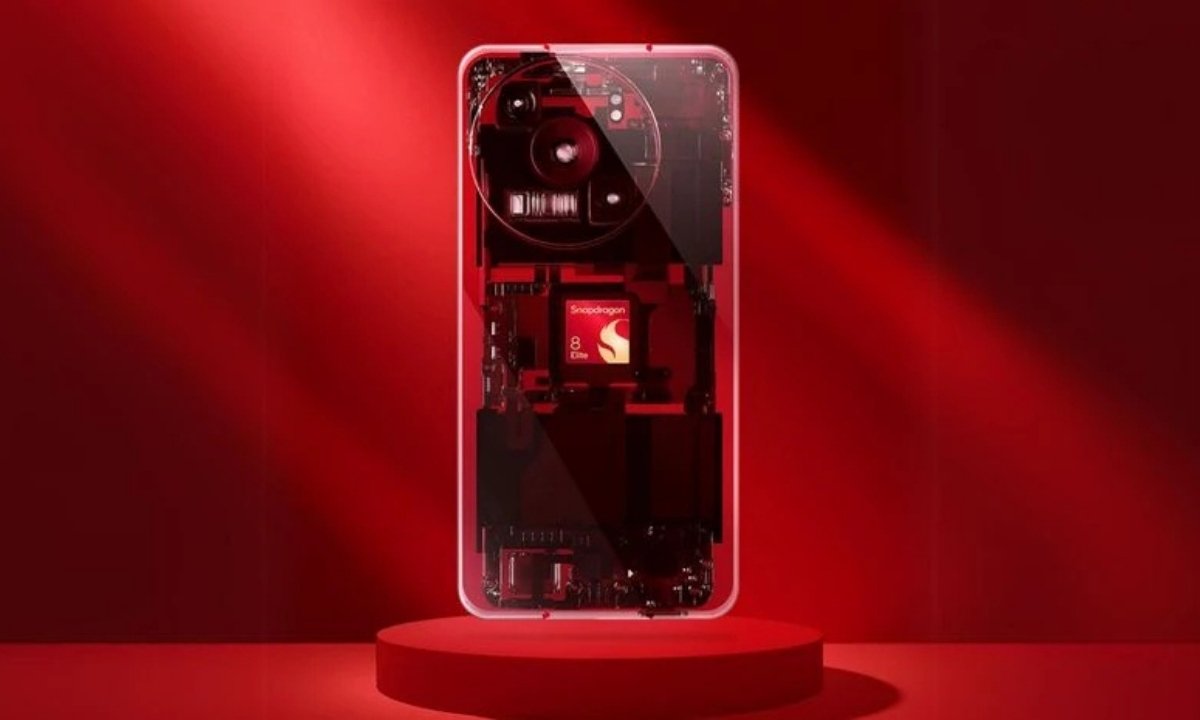
Qualcomm has officially confirmed that Android smartphones powered by Snapdragon processors will soon gain the ability to share files directly with Apple devices. This follows Google’s major update that enables AirDrop compatibility inside Android’s Quick Share system. Currently, the feature is exclusive to the Google Pixel 10 series, but wider support is now on the way.
Snapdragon Devices to Receive AirDrop Compatibility
Qualcomm responded to an Android post on X formerly Twitter, stating that support will arrive “once enabled on Snapdragon in the near future.” This points to an upcoming rollout across multiple Snapdragon powered smartphones.
Expected devices to receive the feature first
- Snapdragon 8 Elite Gen 5 flagships
- OnePlus 15
- Realme GT 8 Pro
- iQOO 15
- Other upcoming Snapdragon 8 Elite models
Devices likely to receive it next
- Previous generation Snapdragon 8 Elite smartphones
- Other Snapdragon 8 series devices
- Older Google Pixel models possibly starting with the Pixel 9 lineup
This update will allow Android users to send photos, videos and documents directly to iPhones, iPads and Macs without needing any extra apps.
Also Read: Realme GT 8 Pro Dream Edition Review
How Quick Share Works with AirDrop
Google has integrated AirDrop functionality into Quick Share at a system level, enabling smooth two way transfers between Android and Apple devices.
How the connection behaves
- Android phones appear inside the AirDrop panel on iPhones, iPads and Macs
- Apple devices appear in the Quick Share menu on supported Android phones
- Transfers use direct peer to peer communication
- No data is routed through cloud servers
- Shared files are not logged
- No companion app is required on either device
Manufacturers like OnePlus and OPPO have offered cross platform sharing before, but those required an app on iOS. Google’s method works natively on both ecosystems.
Quick Share is also available on Windows PCs, though it is still unclear whether AirDrop compatibility will extend to laptops in the future.
How to Send Files From a Pixel 10 Series Phone to an Apple Device
- Update the Quick Share extension from the Google Play Store or install the latest system update
- On your iPhone, iPad or Mac, open Settings and search for AirDrop
- Set visibility to Everyone for 10 Minutes
- On your Pixel, choose the files or photos you want to share
- Tap Share and select Quick Share
- Pick the Apple device from the list
- Accept the transfer on your Apple device
How to Send Files From an Apple Device to a Pixel 10 Series Phone
- On your Pixel, open Settings and search for Quick Share
- Set visibility to Everyone for 10 Minutes
- On your Apple device, choose the file or photo you want to send
- Tap Share and select AirDrop
- Choose the Pixel 10 series phone from the list
- Tap Accept on your Pixel when the transfer prompt appears
1 Comment
Pingback: Gmail May Soon Show Photo and File Previews in Notifications