


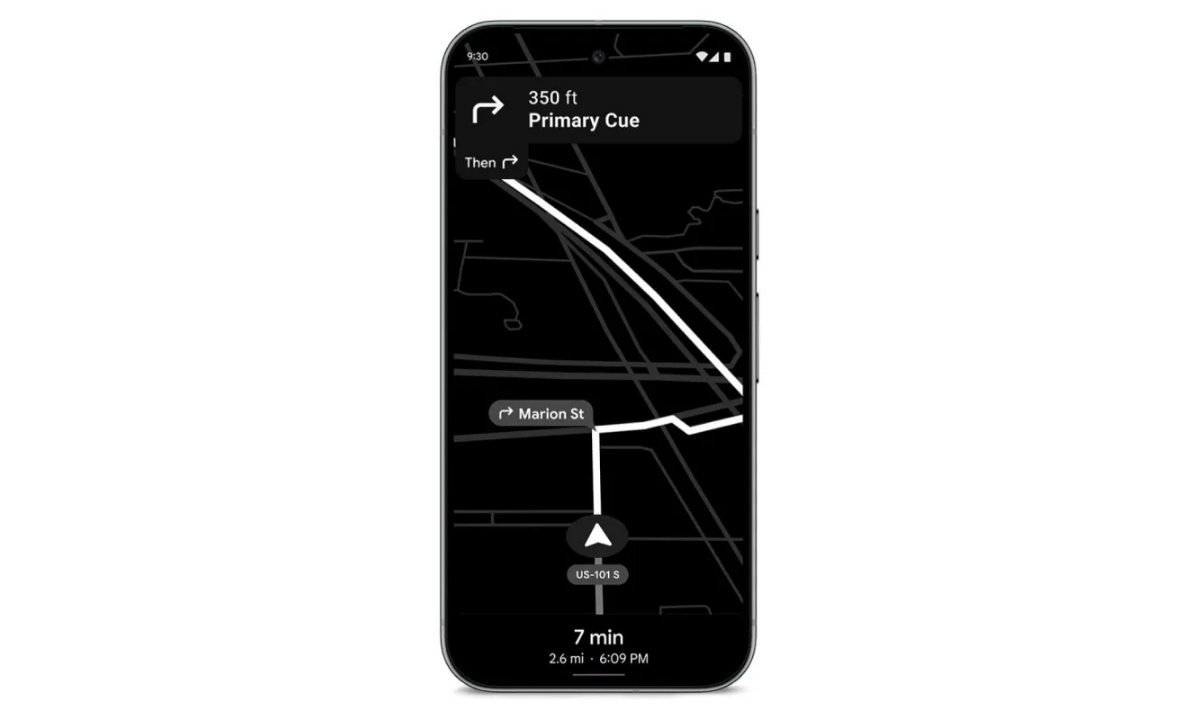
Google is introducing a new Power Saving mode for Maps on the Pixel 10 series, designed to help users extend battery life during long navigation sessions. First spotted after the latest Feature Drop, the feature is now live across the Pixel 10, Pixel 10 Pro, Pixel 10 Pro XL, and Pixel 10 Pro Fold, and comes enabled out of the box.
This new mode activates a simplified version of Google Maps while navigating, cutting down visual elements and lowering power consumption. According to Google, the feature can help drivers squeeze up to four extra hours of usage, depending on brightness levels and driving conditions.
What Google Maps Power Saving Mode Does
Once enabled, Power Saving mode switches Maps into a minimal, distraction-free layout. The interface turns black-and-white, reduces animations, and shows only the essential navigation elements to save battery. Here’s what changes on screen:
- A simplified map view with next-turn details at the top
- Route information compactly displayed at the bottom
- System status bar stays visible for quick checks
- No Google Assistant/Gemini shortcut
- Floating action buttons, speed indicators, and extra menu controls removed
This stripped-down layout is built specifically for driving. It won’t work for walking or cycling directions and is currently limited to portrait mode only.
How to Turn On Google Maps Power Saving Mode
The feature is active by default, but Pixel 10 users can switch it on or off manually via the Maps settings menu.
To enable or disable Power Saving mode:
- Open Google Maps
- Tap your profile picture
- Go to Settings → Navigation
- Under Driving options, toggle Power saving mode
How to Use Power Saving Mode While Navigating
Google has made it extremely intuitive to switch between the modes during a drive.
To activate Power Saving mode:
- Enter your destination in Google Maps
- Choose Driving
- Start navigation
- Press the power button once to enable the low-power interface
To return to the full Maps layout, simply tap the screen or press the power button again. The mode also turns off automatically when you reach your destination.