

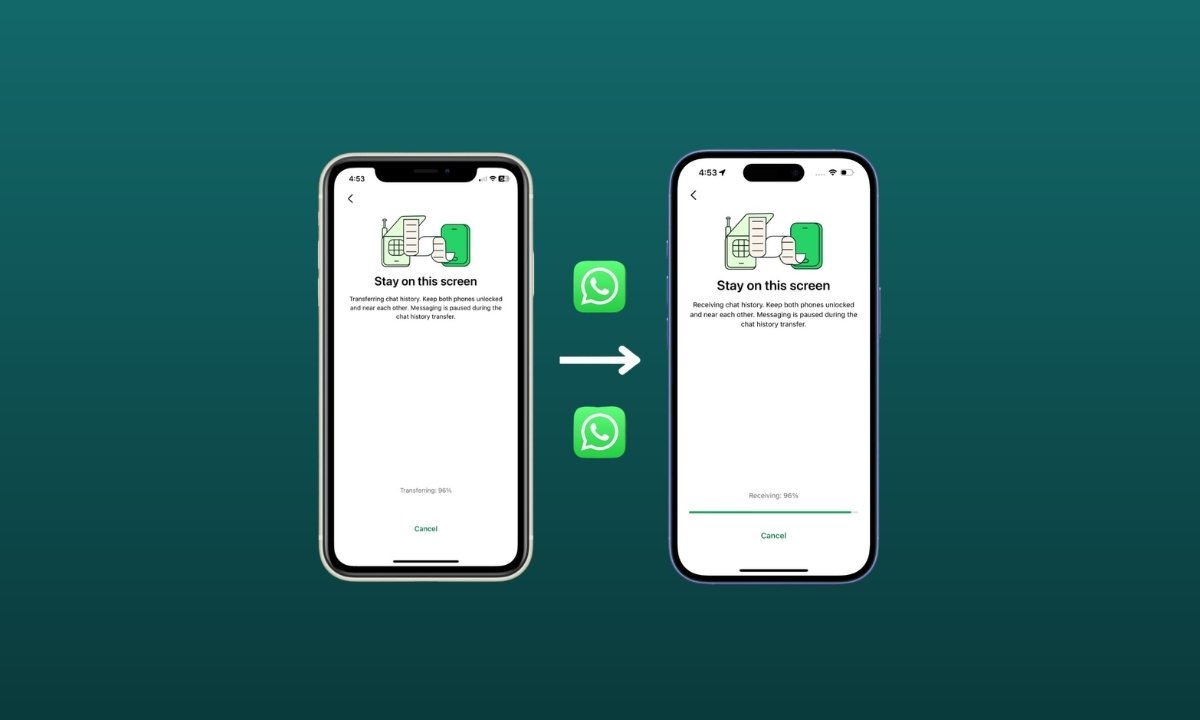
Switching from Android to iPhone or vice versa just got a lot easier. WhatsApp has finally expanded its chat transfer feature, allowing users to move their conversations across platforms without losing data.
Earlier, chat transfers were mostly limited within the same operating system. But now, you can seamlessly shift your chats including photos, videos, and history without relying on third-party apps.
Here’s a simple step-by-step guide to help you transfer your WhatsApp chats between Android and iOS.
WhatsApp Cross-Platform Chat Transfer: What You Get
WhatsApp ensures that all transferred chats remain end-to-end encrypted, keeping your data secure during the process.
You can transfer:
- Account information
- Individual chats
- Group chats
- Communities
- WhatsApp Channels updates
- Full chat history
- Call history
- Media files and settings
You cannot transfer:
- Display name
- Status updates
- Media received via WhatsApp Channels
How to Transfer WhatsApp Chats from iPhone to Android
Requirements:
- Android 10 or above
- Same phone number on both devices
- Latest version of WhatsApp installed on both devices
- Stable Wi-Fi connection
- Do not delete WhatsApp data from your old iPhone before completion
Steps:
- Open WhatsApp on your iPhone and go to Chats
- Tap Transfer Chat History > Transfer to Android
- Tap Continue and allow camera access if prompted
- Keep your iPhone unlocked during the process
- Open WhatsApp on your Android device and verify your number
- Scan the QR code using your iPhone
- Tap Join to connect and begin transfer
- Once done, tap Next on Android to access your chats
How to Transfer WhatsApp Chats from Android to iPhone
Requirements:
- Android 5 (Lollipop) or above
- iOS 15.5 or above
- Move to iOS app installed on Android
- Latest WhatsApp version on both devices
- Same phone number
- iPhone must be new or factory reset
- Both devices connected to Wi-Fi and power
Steps:
- Open Move to iOS on your Android phone
- Follow on-screen instructions
- Enter the code shown on your iPhone
- Select WhatsApp on the Transfer Data screen
- Tap Start and wait for data preparation
- Tap Next and return to Move to iOS
- Tap Continue to begin transfer
- Install WhatsApp on your iPhone
- Log in with the same number
- Tap Start to restore chats
Important Things to Know Before You Transfer
- Transfer time depends on data size
- You must transfer chats before setting up WhatsApp on the new device
- You may need to reinstall WhatsApp to restore chats
- New and old chats cannot be merged
- Not supported on WhatsApp Business
- Data remains on the old device unless deleted manually
- Chats cannot be transferred to a different phone number
- Payment messages are not transferred
- Status updates cannot be transferred from iPhone to Android
Final Thoughts
With this update, WhatsApp makes switching between Android and iPhone far less stressful. The process is now official, secure, and easy to follow, no extra apps needed.
If you’re planning to upgrade your phone or switch ecosystems, you can now carry your entire chat history with you in just a few steps.